Best Wi-Fi Channel for 2.4 GHz, 5 GHz and 6 GHz
Wi-Fi routers use radio channels within the 2.4 GHz, 5 GHz, and, on compatible equipment, 6 GHz frequency bands. When several nearby networks compete for the same or overlapping spectrum, devices may experience lower throughput, higher latency, or inconsistent connections.
However, there is no single Wi-Fi channel that is best for every home. The right choice depends on the frequency band, nearby networks, channel width, local regulations, router capabilities, and the devices connected to your network.
This guide explains how Wi-Fi channels work, how to choose a channel for 2.4 GHz, 5 GHz, and 6 GHz, and when automatic channel selection is better than manual configuration.
What Is a Wi-Fi Channel?
A Wi-Fi frequency band is divided into smaller sections called channels. A router or access point uses these channels to communicate wirelessly with phones, laptops, televisions, smart home devices, and other clients.
Think of the frequency band as a road and the channels as lanes. Several networks can operate in the same general frequency range, but how efficiently they share the available spectrum depends partly on which channels they use.
The three main Wi-Fi bands found in modern home networks are:
- 2.4 GHz: long range and broad device compatibility, but limited spectrum and frequent congestion;
- 5 GHz: more available channels and higher potential throughput, but generally shorter range;
- 6 GHz: additional spectrum for compatible Wi-Fi 6E and Wi-Fi 7 equipment, with less legacy congestion but shorter practical range through obstacles.
If you want a broader explanation of wireless networking, read our guide to how Wi-Fi works.
Why Wi-Fi Channels Matter
Your router is rarely the only wireless device using the surrounding radio spectrum.
In an apartment building or densely populated neighborhood, your device may detect many nearby Wi-Fi networks. Bluetooth devices and some household equipment can also contribute to interference, particularly in the 2.4 GHz band.
Two common situations are important to understand.
Co-Channel Congestion
Several Wi-Fi networks may operate on the same channel. Compatible Wi-Fi devices attempt to share the available airtime, so a busy channel can reduce the amount of transmission time available to each network.
Overlapping Channels
Networks on partially overlapping channels can interfere with one another in less efficient ways.
This is particularly important in the 2.4 GHz band because there is relatively little spectrum available.
Changing channels cannot fix every Wi-Fi problem. Weak coverage caused by distance, walls, poor router placement, or insufficient access points requires a different solution.
For coverage problems, see our guide on how to boost Wi-Fi coverage in large homes.
Best Wi-Fi Channel for 2.4 GHz
The 2.4 GHz band provides good range and remains important for older devices and many smart home products.
Its main disadvantage is limited spectrum.
For conventional 20 MHz Wi-Fi operation, channels 1, 6, and 11 are commonly used because they provide a practical non-overlapping channel plan.
Instead of automatically choosing channel 1, 6, or 11, check which of these channels is least congested in your location.
Should You Use Channels Other Than 1, 6 and 11?
In most home networks, choosing one of the standard non-overlapping channels is preferable to selecting an intermediate channel simply because fewer networks appear to be using it.
For example, choosing channel 4 can create overlap with networks operating around both channel 1 and channel 6.
Channel availability can also vary by country and regulatory domain, so the router’s regional settings and local regulations must be respected.
What If Channels 1, 6 and 11 Are All Busy?
A channel with several nearby networks is not automatically unusable.
Consider both the number of networks and their signal strength. A distant network with a very weak signal may have much less effect than a nearby router transmitting strongly on the same channel.
In a crowded environment, test channels 1, 6, and 11 at the locations where Wi-Fi is actually used.
Best Wi-Fi Channel for 5 GHz
The 5 GHz band offers considerably more usable channel capacity than 2.4 GHz and is generally less affected by overlapping-channel problems.
This makes 5 GHz a good choice for devices that require higher throughput, including:
- laptops;
- smart TVs;
- streaming devices;
- game consoles;
- modern smartphones and tablets;
- desktop computers with compatible Wi-Fi adapters.
There is no universal 5 GHz channel that will always provide the best performance.
A suitable channel depends on:
- which channels are available in your country;
- nearby Wi-Fi networks;
- channel width;
- router capabilities;
- client compatibility;
- whether DFS channels are being used.
In many homes, leaving 5 GHz channel selection on Auto works well, particularly when the router periodically evaluates local wireless conditions.
Manual selection can be useful when the automatic system repeatedly chooses a congested or otherwise problematic channel.
Choosing a Wi-Fi Channel for 6 GHz
The 6 GHz band significantly expands the spectrum available to modern Wi-Fi equipment.
It is used by compatible Wi-Fi 6E and Wi-Fi 7 devices. Older Wi-Fi devices that do not support 6 GHz cannot connect to this band.
The additional spectrum makes it possible to use wider channels with less competition from legacy Wi-Fi networks.
However, 6 GHz is not automatically better in every situation.
Higher-frequency signals generally have more difficulty passing through walls and other obstacles than 2.4 GHz signals. A 6 GHz connection can therefore perform extremely well near a compatible router or access point while becoming less useful at greater distances.
For most home users, automatic channel management is a sensible starting point on 6 GHz.
Manual channel configuration is usually more useful when diagnosing a specific performance problem or designing a more advanced multi-access-point network.
20, 40, 80 or 160 MHz: Which Channel Width Should You Use?
Choosing a Wi-Fi channel is only part of the configuration. Channel width also affects performance and spectrum use.
A wider channel can provide more potential throughput, but it also consumes more spectrum.
20 MHz
A 20 MHz channel uses relatively little spectrum and is particularly useful in crowded environments.
For 2.4 GHz, 20 MHz is generally the safest choice when reliability and compatibility are priorities.
40 MHz
A 40 MHz channel combines additional spectrum to increase potential throughput.
It can be useful under suitable conditions, but using 40 MHz in a crowded 2.4 GHz environment can consume too much of the limited available spectrum.
80 MHz
80 MHz is commonly used on modern 5 GHz networks and can provide high throughput when sufficient clean spectrum is available.
It is often a practical balance between speed and spectrum use for modern home Wi-Fi.
160 MHz
160 MHz can provide higher potential throughput for compatible routers and clients, but it requires a large amount of contiguous spectrum.
In a congested environment, a narrower channel can sometimes deliver more consistent real-world performance than a very wide channel.
The fastest theoretical setting is therefore not always the best practical setting.
What Are DFS Wi-Fi Channels?
Some 5 GHz frequencies are shared with radar systems. Wi-Fi equipment operating on these frequencies may be required to use Dynamic Frequency Selection (DFS).
A router using a DFS channel must follow the regulatory requirements for detecting protected radar signals.
If radar is detected, the access point may need to stop using that channel and move the network elsewhere.
DFS channels can be useful because they may be less congested than commonly used non-DFS channels.
However, there are potential disadvantages:
- some older devices may have limited DFS support;
- a router may need to wait before beginning transmission on certain channels;
- the network may change channels after radar detection;
- availability and requirements vary by regulatory region.
If your network is stable on a DFS channel, there is not necessarily a reason to avoid it. If devices disconnect or cannot detect the network, testing a non-DFS channel can help identify whether DFS compatibility is involved.
Auto vs Manual Wi-Fi Channel Selection
Most modern routers offer an automatic channel setting.
When it works correctly, the router analyzes the wireless environment and selects an appropriate channel without requiring manual configuration.
When Auto Is a Good Choice
Automatic selection is usually a good starting point when:
- the network is already stable;
- the router has effective channel-management features;
- nearby wireless conditions change regularly;
- you do not want to monitor channel congestion manually.
When Manual Selection Can Help
Manual configuration may be worth testing when:
- the router repeatedly selects a heavily congested channel;
- Wi-Fi performance changes dramatically at different times;
- you are troubleshooting interference;
- you operate several access points and want greater control over channel reuse.
Do not change channels simply because a different number appears better. Measure performance before and after the change.
How to Check Wi-Fi Channel Congestion
A Wi-Fi analyzer can show nearby wireless networks, their channels, frequency bands, and approximate received signal strength.
Before changing router settings:
- check the network near the router;
- repeat the measurement where Wi-Fi is normally used;
- identify strong neighboring networks;
- compare available channels;
- record current speed and latency;
- change only one important setting at a time;
- test the network again.
A single scan does not necessarily represent conditions throughout the day.
Neighbors’ routers and devices can turn on and off, and automatic access points may change channels. If the problem is intermittent, check the network at different times.
Signal Strength Matters
Do not judge congestion only by counting network names.
Ten extremely weak networks may have less practical impact than one or two strong neighboring access points.
The physical location of the router also matters. Before spending time on detailed channel tuning, make sure the router is positioned sensibly and is not hidden behind large metal objects or placed in an unsuitable corner of the home.
How to Change the Wi-Fi Channel on a Router
The exact process varies by router manufacturer, but the general procedure is similar.
- connect to the router;
- open its administration interface or management app;
- find the Wi-Fi or Wireless settings;
- select the 2.4 GHz, 5 GHz, or 6 GHz band;
- find the Channel setting;
- change Auto to the desired available channel if manual control is required;
- check the Channel Width setting;
- save or apply the configuration;
- allow the wireless network to restart;
- test performance again.
The available channels depend on the router and its regulatory region.
Do not change the router’s country or regulatory settings simply to unlock channels that are not intended for use in your location.
Choosing Wi-Fi Channels in an Apartment
Channel selection can be particularly important in apartment buildings because many routers may operate within a relatively small area.
The 2.4 GHz band often becomes crowded first.
Start by checking channels 1, 6, and 11 and use 20 MHz channel width when congestion is significant.
For devices that support it, 5 GHz can provide more available spectrum and higher throughput.
6 GHz can offer another useful option for compatible devices, particularly when the router and client are relatively close to each other.
However, channel selection alone cannot solve every apartment Wi-Fi problem.
Router placement, building materials, neighboring networks, device capabilities, and the number of active clients can all affect performance.
How Wi-Fi Channels Work With Mesh Systems
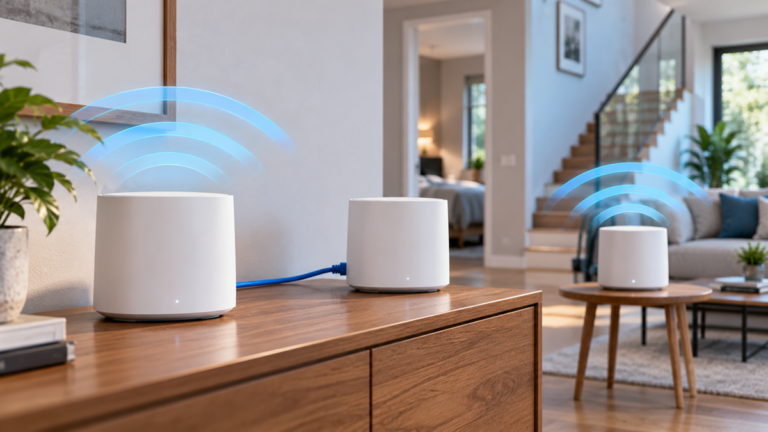
Mesh Wi-Fi systems use multiple nodes to extend wireless coverage throughout a home.
Depending on the system, radios may be used for:
- connections between client devices and mesh nodes;
- wireless communication between nodes;
- a dedicated or shared wireless backhaul;
- multiple frequency bands managed automatically by the system.
Because mesh systems coordinate several radios, manually forcing channels is not always possible or desirable.
Many consumer mesh products manage channels automatically.
Before changing advanced settings, check the manufacturer’s recommendations for your specific system.
If you are deciding whether mesh is appropriate for your home, read our Mesh Wi-Fi Systems guide.
You can also compare Wi-Fi extenders vs mesh Wi-Fi if your main goal is improving coverage.
Common Wi-Fi Channel Mistakes
Using 40 MHz on a Crowded 2.4 GHz Network
A wider channel uses more of the limited 2.4 GHz spectrum and may make congestion worse.
When stability matters, 20 MHz is often the more practical choice.
Choosing an Overlapping 2.4 GHz Channel
Selecting an intermediate channel simply because it appears less busy can create additional overlap with neighboring networks.
Start with channels 1, 6, and 11.
Assuming a Wider Channel Is Always Faster
80 MHz or 160 MHz can provide high theoretical throughput, but only when enough usable spectrum is available.
A narrower channel may perform more consistently in a congested environment.
Changing Several Settings at Once
If you change the channel, channel width, transmit power, security settings, and router location simultaneously, it becomes difficult to identify which change improved or worsened the network.
Change one major variable at a time and test again.
Ignoring Router Placement
Changing channels cannot compensate for a router placed behind metal objects, inside unsuitable furniture, or too far from the devices that need a strong connection.
Testing Only Next to the Router
A channel that performs well beside the access point may behave differently in another room where neighboring signals are stronger.
Test Wi-Fi where the devices are actually used.
Expecting Channel Changes to Fix Poor Coverage
Channel optimization can reduce interference, but it cannot create strong coverage where the signal is already too weak.
Large homes may require additional access points or a properly designed mesh system.
Frequently Asked Questions
What is the best Wi-Fi channel for 2.4 GHz?
Channels 1, 6, and 11 are the standard starting points for 20 MHz 2.4 GHz Wi-Fi because they form a practical non-overlapping channel plan. Choose among them according to local congestion and signal conditions.
What is the best Wi-Fi channel for 5 GHz?
There is no single best 5 GHz channel for every network. Choose a channel based on local congestion, channel width, client compatibility, DFS requirements, and the channels permitted in your region.
Should I leave my Wi-Fi channel on Auto?
Usually, yes. A modern router with effective automatic channel management can make good choices without manual intervention. Manual selection is most useful when troubleshooting a specific congestion or compatibility problem.
Is 20 MHz or 40 MHz better for 2.4 GHz?
20 MHz is generally the safer choice in crowded environments because it consumes less of the limited 2.4 GHz spectrum. 40 MHz can provide more potential throughput but can also increase interference and compatibility problems.
Is 160 MHz better than 80 MHz?
Not necessarily. 160 MHz offers greater theoretical capacity but requires more clean spectrum. In congested environments, 80 MHz or even narrower channels may provide more consistent performance.
Does changing the Wi-Fi channel increase speed?
It can if interference or congestion is limiting performance. If the real problem is weak signal strength, an overloaded internet connection, poor router placement, or an old client device, changing channels may make little difference.
Should 2.4 GHz and 5 GHz use the same channel number?
The bands use different frequency ranges and channel plans, so matching their channel numbers is neither necessary nor meaningful.
Is 6 GHz Wi-Fi faster than 5 GHz?
6 GHz provides additional spectrum and can support very high performance with compatible equipment, particularly at shorter distances. Real-world speed still depends on the router, client, channel width, signal quality, interference, and internet connection.
How often should I change my Wi-Fi channel?
There is no reason to change channels on a fixed schedule. If the network is stable and performs well, leave it alone. Reevaluate the channel when persistent congestion or performance problems appear.
Final Thoughts
The best Wi-Fi channel is the one that provides reliable performance in your actual wireless environment.
For 2.4 GHz, start with channels 1, 6, and 11 and consider using 20 MHz channel width in congested areas. On 5 GHz, take advantage of the larger number of available channels and let a capable router manage them automatically unless there is a reason to configure them manually.
For compatible Wi-Fi 6E and Wi-Fi 7 equipment, 6 GHz provides additional spectrum and can deliver excellent performance when signal conditions are good.
Most importantly, test before and after making changes. Channel selection is only one part of a reliable home network; router placement, coverage, channel width, client capabilities, and network design are equally important.
For a broader approach to improving the complete network, see our guide on how to build a fast, stable home network.