How to Build a Fast, Stable Home Network
A fast and stable home network depends on much more than the speed of your internet plan.
The router, Ethernet connections, Wi-Fi access points, coverage, interference, equipment placement, and security settings all affect how reliably devices communicate.
A well-designed network should provide strong wireless coverage, predictable wired connections, low latency, enough capacity for multiple devices, and appropriate protection for computers, phones, televisions, cameras, and smart-home equipment.
This guide explains how to build a fast and stable home network by diagnosing bottlenecks, planning the layout, choosing suitable equipment, using Ethernet where practical, and securing the system correctly.
Understand the Main Home Network Components
Before choosing equipment, it helps to understand the role of each network component.
Modem or Optical Network Terminal
A modem connects to cable, DSL, or another compatible internet service.
A fiber connection commonly uses an optical network terminal, also known as an ONT.
The modem or ONT provides the physical connection to the internet provider. In some installations, it may be combined with the router in one device.
Router
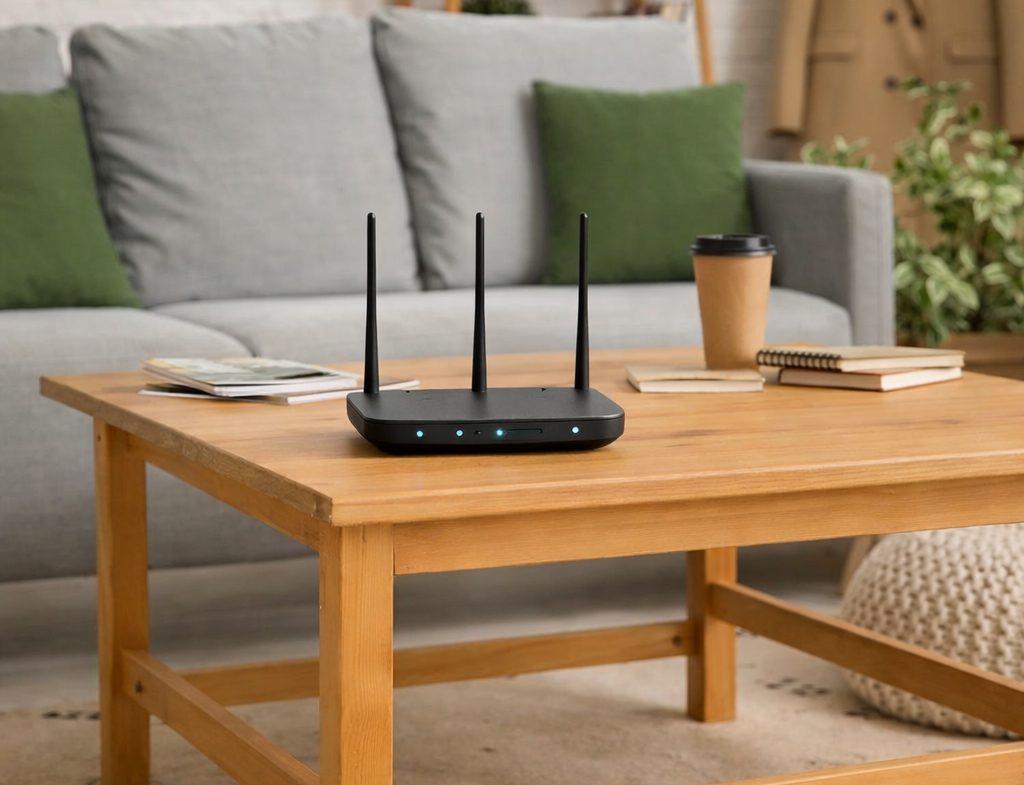
The router manages traffic between the home network and the internet.
Typical router functions include:
- routing traffic
- assigning local IP addresses
- providing firewall functions
- managing network address translation
- connecting wired and wireless devices
Wireless Access Point
A wireless access point provides Wi-Fi coverage.
Many consumer routers contain an access point, router, firewall, and Ethernet switch in one enclosure. However, larger homes may benefit from separate access points positioned around the property.
Network Switch
A network switch expands the number of Ethernet connections available on the local network.
It can connect computers, televisions, consoles, access points, network storage, cameras, and other wired equipment.
Mesh Wi-Fi Node
A mesh node is part of a coordinated wireless system.
Nodes may communicate through Wi-Fi, Ethernet, or another supported backhaul connection.
Cellular Router
A 4G or 5G router uses a mobile network as its internet connection and then distributes that connection through Wi-Fi and Ethernet.
This means that the cellular and local Wi-Fi connections are separate parts of the network.
Internet Speed and Local Network Speed Are Different
One of the most common networking mistakes is assuming that a faster internet plan automatically produces faster Wi-Fi everywhere.
The internet connection is the link between your property and the service provider. By contrast, the local network connects devices inside the property.
Possible bottlenecks include:
- the internet service
- the modem or ONT
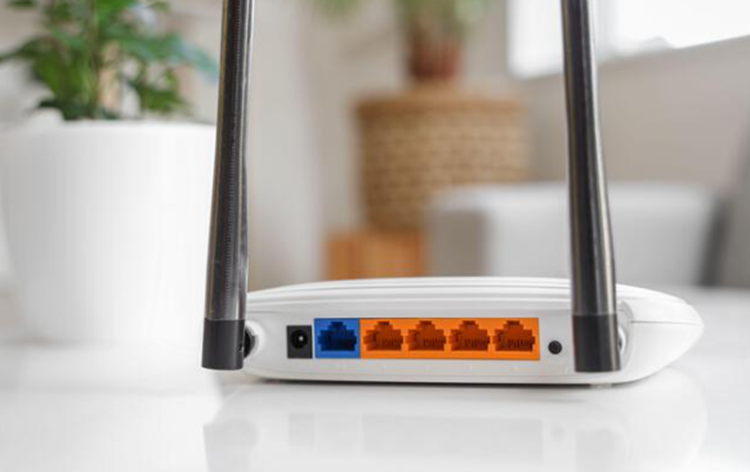
- the router’s WAN port
- the router’s processing capacity
- Ethernet cables and switches
- Wi-Fi coverage
- the connected device
- the remote internet service being accessed
Use Ethernet to Establish a Baseline
Connect a suitable computer directly to the router through Ethernet and test the connection.
If wired performance is good but Wi-Fi is poor, focus on wireless coverage and configuration.
If both wired and wireless performance are poor, investigate the internet service, modem, router, cabling, and upstream connection.
Local Transfers May Be Faster Than the Internet
A computer can transfer files to local network storage without sending the data through the internet.
Therefore, local transfer speed depends on Ethernet, Wi-Fi, switches, storage devices, and computers rather than only on the internet subscription.
Define Your Network Requirements
A simple apartment and a large multi-floor smart home require different network designs.
Before buying equipment, list:
- the number of floors
- the rooms requiring reliable coverage
- outdoor areas and outbuildings
- the number of connected devices
- home-office requirements
- gaming and streaming equipment
- security cameras
- network storage
- smart-home devices
- available Ethernet cabling
Prioritize Important Devices
Not every connected device has the same requirements.
For example:
- A temperature sensor uses little bandwidth.
- A security camera may upload video continuously.
- A gaming computer benefits from low latency.
- A network backup can generate substantial local traffic.
- A video call requires stable upload performance.
Plan the network around the actual devices and activities in the home rather than the maximum number printed on a router box.
Choose the Right Home Router
The router should support the internet speed, Ethernet connections, Wi-Fi features, and number of devices required by the household.
Check:
- WAN port speed
- LAN port speed
- supported Wi-Fi generation
- security-update policy
- mesh or access-point support
- guest-network features
- parental controls where required
- VPN capabilities where required
- quality-of-service features
- bridge or access-point modes
Check Port Speeds
A router with Gigabit Ethernet ports cannot provide more than the practical capacity of those ports to one wired device.
If your internet service or local network exceeds that level, look for suitable multi-gigabit WAN and LAN connections.
However, purchasing multi-gigabit equipment provides little benefit when every other component remains limited to a lower speed.
Check Software Support
A router should receive security and stability updates from its manufacturer.
The
NIST consumer-router cybersecurity guidance
explains why router security and update support are important.
Provider Router or Personal Router?
A provider-supplied router may offer simple setup, technical support, and automatic configuration.
A personal router may provide more advanced controls, stronger Wi-Fi, longer support, or better compatibility with access points.
Before replacing provider equipment, check whether the service requires specific authentication, telephone support, television functions, or modem compatibility.
Choose a Suitable Wi-Fi Generation
Wi-Fi 6
Wi-Fi 6 remains a strong option for many homes.
It is designed to operate efficiently when several compatible devices share the same wireless network.
Wi-Fi 6E
Wi-Fi 6E extends compatible Wi-Fi 6 equipment into the 6 GHz band where permitted.
The additional spectrum can provide cleaner channels and high performance. However, 6 GHz generally has more difficulty passing through walls than lower-frequency bands.
Newer Wi-Fi Generations
Newer equipment can provide additional capacity, channel options, and efficiency.
Nevertheless, devices must support the newer technology to use its full capabilities.
Coverage, access-point placement, Ethernet backhaul, device compatibility, and software support may matter more than simply purchasing the newest Wi-Fi label.
Wi-Fi and 5G Are Different Technologies
Wi-Fi provides local wireless networking. A 5G service connects compatible equipment to a mobile operator.
A 5G home router may receive the internet connection through cellular service and distribute it through Wi-Fi.
For more detail, read our
Wi-Fi 6 vs 5G comparison.
Plan Wi-Fi Coverage Throughout the Home
One powerful router is not always the best solution for a large property.
Radio signals weaken with distance and when passing through:
- reinforced concrete
- brick and stone
- metal structures
- foil-backed insulation
- mirrors
- dense floors and ceilings
Mesh Wi-Fi
A mesh system uses several coordinated nodes.
It can provide convenient whole-home coverage where running Ethernet is impractical.
However, wireless mesh nodes still need a reliable connection to the main unit or another node.
Wired Access Points
Wired access points connect to the router or switch through Ethernet.
They often provide more predictable performance because their backhaul does not depend on wireless signals passing through several walls.
Do Not Place Nodes in Dead Zones
A wireless mesh node or extender should be positioned where it can still receive a strong connection while extending coverage toward the weak area.
For detailed placement advice, see
how to boost Wi-Fi coverage in a large home.
Build a Wired Ethernet Backbone
Ethernet provides predictable performance for stationary devices and Wi-Fi infrastructure.
Consider wired connections for:
- desktop computers
- gaming consoles
- smart televisions
- streaming devices
- network storage
- home-office equipment
- security camera recorders
- wireless access points
- mesh nodes
Moving fixed devices to Ethernet also leaves more wireless airtime available for phones, tablets, and laptops.
Select Suitable Cable
Choose cable that supports the required network speed, installation environment, distance, and local building requirements.
Avoid purchasing cable based only on a high category number. Conductor material, certification, installation quality, connectors, and termination all matter.
Avoid Copper-Clad Aluminum Cable
Low-quality copper-clad aluminum network cable may not provide the same electrical and mechanical performance as compliant solid-copper cabling.
Use suitable certified cable from a reliable source, particularly for permanent in-wall installations and Power over Ethernet.
Plan During Renovation
If walls are open during construction or renovation, install network cabling to important rooms and likely access-point locations.
Additional cable runs are normally easier to install during construction than after the walls are finished.
Choose Network Switches and Port Speeds
A network switch expands the number of wired devices that can connect to the network.
Unmanaged Switches
An unmanaged switch normally works without extensive configuration and is suitable for simple home networks.
Managed Switches
A managed switch may provide:
- VLAN support
- traffic monitoring
- link aggregation
- port configuration
- advanced Power over Ethernet controls
These features can be useful, but they also increase complexity.
Power over Ethernet
Power over Ethernet can supply compatible access points, cameras, and other devices through the network cable.
Check:
- the supported PoE standard
- power required by each device
- the switch’s total power budget
- cable suitability
- maximum connection distance
Check Uplink Capacity
A switch serving several high-speed devices needs an appropriate uplink to the router or main switch.
Otherwise, many devices may share one lower-speed connection and create a bottleneck.
Position Routers and Access Points Correctly
Even excellent hardware can perform poorly in an unsuitable location.
General placement guidelines include:
- place access points near the center of the coverage area
- keep them in open locations
- raise them above floor level where practical
- avoid closed cabinets
- avoid large metal objects
- consider both horizontal and vertical coverage
- keep wireless mesh nodes within reliable backhaul range
Do Not Place Every Access Point Together
Multiple access points should provide useful coverage in different parts of the property.
Placing several units in the same room does not solve distant dead zones and may increase interference.
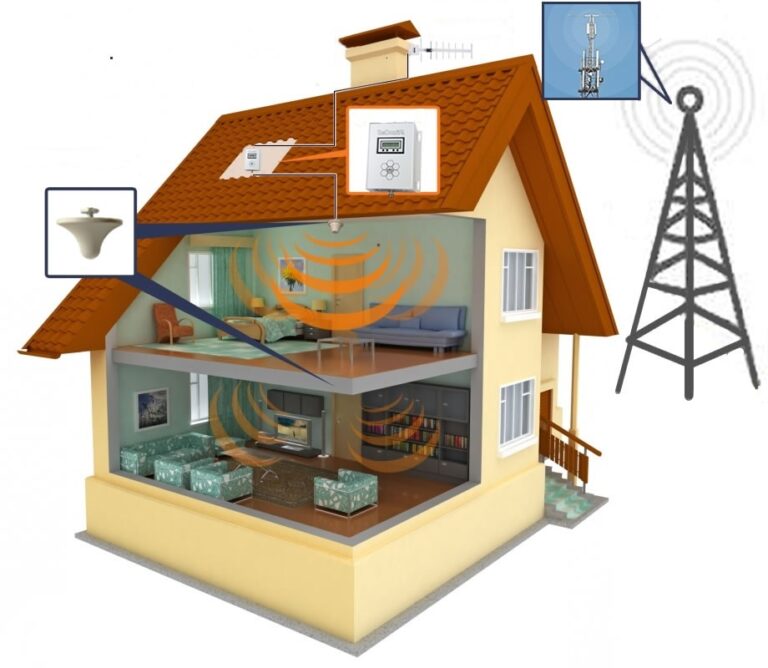
Consider Ceiling-Mounted Access Points
Some access points are designed for ceiling or high wall installation.
This can provide a clear signal path and consistent coverage when the mounting position is planned correctly.
Follow the Manufacturer’s Antenna Guidance
For equipment with adjustable external antennas, follow the manufacturer’s recommendations.
There is no single antenna angle that is ideal for every room, floor plan, and router.
Use 2.4 GHz, 5 GHz and 6 GHz Correctly
2.4 GHz
The 2.4 GHz band generally provides broader reach and better obstacle penetration.
However, it normally offers less capacity and may experience more interference.
It can be useful for distant devices and many low-bandwidth smart-home products.
5 GHz
The 5 GHz band generally provides more capacity and higher potential throughput.
Its useful range may be shorter through walls and floors.
It is often suitable for laptops, televisions, phones, consoles, and other devices when the signal is strong.
6 GHz
The 6 GHz band provides additional spectrum for compatible Wi-Fi equipment where permitted.
However, it generally requires closer or more strategically positioned access points.
Automatic Band Selection
Many modern systems use one network name and guide compatible devices between bands.
This can simplify network management. Nevertheless, some older smart devices may be easier to configure through a dedicated 2.4 GHz network.
Channel Width
Wider Wi-Fi channels can increase potential speed, but they also use more spectrum.
In a congested environment, a narrower channel may provide more consistent performance.
Connect Smart-Home Devices Safely
Many smart-home products use 2.4 GHz Wi-Fi because of its broad compatibility and useful range.
Low-bandwidth sensors may use very little data. By contrast, security cameras and video doorbells can generate substantial continuous or event-based traffic.
Use Ethernet for Fixed Devices
Where supported, Ethernet can provide reliable connections for:
- smart-home hubs
- televisions
- camera recorders
- media servers
- home automation controllers
Consider a Separate IoT Network
Some routers and firewalls support a dedicated IoT network, guest network, or VLAN.
Separating less-trusted smart devices can improve security. However, some products require local communication with phones, hubs, and controllers.
Configure isolation carefully so that required features continue to work.
Avoid Depending Entirely on Cloud Services
Where appropriate, choose equipment that supports useful local control.
A temporary internet outage should not prevent every essential automation from operating.
Secure the Home Network
A stable network must also be secure and maintainable.
- Change administrator credentials: do not keep a factory-default administrator password.
- Use WPA3 where supported: otherwise use a strong supported WPA2 configuration.
- Choose a strong Wi-Fi password: avoid personal information and easily guessed phrases.
- Install firmware updates: enable automatic updates where supported and reliable.
- Use a guest network: visitors may not need access to personal devices and network storage.
- Disable unused features: unnecessary remote administration and legacy services increase complexity.
- Review connected devices: investigate unfamiliar equipment.
- Back up the configuration: save a current router configuration when the equipment supports it securely.
Should You Disable WPS?
If WPS is not needed, disabling it removes unnecessary functionality.
The available WPS methods and security implications depend on the router.
Avoid Unnecessary Port Forwarding
Do not expose cameras, storage devices, or administration interfaces directly to the internet without understanding the security implications.
Use secure remote-access methods and keep all exposed services updated.
Document the Network
Keep a secure record of:
- router and switch models
- access-point locations
- network names
- important IP addresses
- cable destinations
- firmware versions
- backup configuration locations
Documentation makes future troubleshooting and upgrades easier.
Plan Backup Internet and Power
Secondary Internet Connection
A 4G or 5G connection can provide backup service when fixed broadband fails.
Automatic failover requires a router or firewall designed to manage multiple internet connections.
Uninterruptible Power Supply
A suitable uninterruptible power supply can keep the modem, ONT, router, switch, and access points running during a short power interruption.
Calculate the required load and runtime rather than choosing a unit based only on physical size.
Understand Service Limitations
Backup power does not guarantee internet access if the provider’s local equipment, mobile site, or wider network is also unavailable.
In addition, do not assume that internet-based telephone or emergency-calling services will operate during every power failure.
Test the Completed Home Network
After installing or changing equipment, test the network systematically.
Test Wired Performance
Measure performance through Ethernet at the router and important switches.
This confirms whether the internet connection and wired backbone are operating as expected.
Test Wi-Fi in Important Rooms
Use the same device to compare:
- signal strength
- download speed
- upload speed
- latency
- roaming
- connection stability
Test Under Normal Load
A network may perform well with one device but struggle when several people stream, work, play games, and upload data simultaneously.
Test the system under realistic household conditions.
Do Not Rely on One Speed Test
Results vary with test servers, device capability, Wi-Fi conditions, and internet traffic.
Repeat measurements and look for consistent patterns.
Troubleshooting a Slow or Unstable Network
- Test through Ethernet. Separate internet problems from Wi-Fi problems.
- Test Wi-Fi close to an access point. Determine whether coverage is the issue.
- Check one device and several devices. A problem may affect only one client.
- Inspect cables and port speeds. A damaged or lower-speed connection may create a bottleneck.
- Review access-point placement. Move equipment away from cabinets, corners, and major obstacles.
- Check mesh backhaul. Wireless nodes may be too far apart.
- Install current firmware. Use updates provided for the exact model.
- Check network load. Backups, cameras, downloads, and cloud synchronization may consume capacity.
- Review Wi-Fi channels. Congestion and excessive channel width may reduce consistency.
- Restart equipment when appropriate. A restart may clear a temporary fault, but recurring problems require diagnosis.
Check DNS Separately
A slow or unreliable DNS service can make websites appear slow even when raw connection speed is acceptable.
However, changing DNS will not fix weak Wi-Fi coverage or an overloaded internet connection.
Check for Double NAT
Double NAT can occur when two devices operate as routers in the same connection path.
It may complicate gaming, port forwarding, VPNs, and remote access.
Use bridge, modem-only, access-point, or passthrough modes where appropriate and supported.
Common Home Network Mistakes
Buying New Equipment Without Testing
Identify whether the problem involves the internet connection, wired network, Wi-Fi coverage, or one device.
Using One Router for a Difficult Building
A large home with dense walls may require several access points.
Placing Mesh Nodes Inside Dead Zones
Wireless nodes need a reliable backhaul connection.
Ignoring Ethernet
Wired connections reduce wireless traffic and provide predictable performance.
Using Slow Switches or Ports
One lower-speed link can limit every device connected through it.
Using Poor-Quality Permanent Cabling
Cable material, termination, testing, and installation quality affect performance and reliability.
Ignoring Security Updates
Equipment that no longer receives updates may create unnecessary security risk.
Using Too Many Access Points
Excessive overlap can increase interference and create roaming problems.
Opening Unnecessary Ports
Inbound access increases exposure and should be configured only when genuinely required.
Forgetting to Document the Network
Unlabeled cables, unknown passwords, and undocumented devices make future troubleshooting more difficult.
Frequently Asked Questions
What makes a home network fast and stable?
A suitable internet connection, capable router, reliable Ethernet backbone, well-positioned Wi-Fi access points, secure configuration, and appropriate device connections all contribute to performance.
Is Ethernet better than Wi-Fi?
Ethernet normally provides more predictable performance for stationary equipment.
Wi-Fi provides mobility and convenience. Most homes benefit from using both.
Do I need a mesh system?
Mesh can help when one router cannot cover the property and Ethernet installation is impractical.
If cabling is available, wired access points or Ethernet-backed mesh nodes may provide more consistent performance.
Is Wi-Fi 6 enough for a modern home?
Yes, Wi-Fi 6 remains suitable for many households.
The best choice depends on device compatibility, internet speed, required coverage, local congestion, and budget.
Will a new router make the internet faster?
It can remove a router or Wi-Fi bottleneck, but it cannot make the internet service exceed the capacity supplied by the provider.
How many access points does a house need?
There is no universal number.
The requirement depends on floor area, construction, room layout, device density, frequency bands, and required performance.
Should smart-home devices use a separate network?
Separating less-trusted devices can improve security.
However, configure the network carefully because some smart devices require local communication with phones, hubs, and controllers.
Should I use the same Wi-Fi name on every access point?
Normally, compatible access points in one coordinated network use the same network name and security settings to support roaming.
However, specific equipment and troubleshooting situations may require a different arrangement.
Does a faster internet plan improve Wi-Fi range?
No. The plan changes the potential internet bandwidth, not the radio range of the access points.
Can a 5G router be part of a normal home network?
Yes. A 5G router can provide the internet connection while Ethernet, switches, and Wi-Fi access points distribute the network inside the home.
Final Thoughts
A fast and stable home network is created by several components working together: a suitable internet service, capable router, reliable Ethernet backbone, correctly positioned Wi-Fi access points, and secure configuration.
Do not begin by purchasing the newest router. First, determine whether the bottleneck is the internet connection, Wi-Fi coverage, wired network, or a particular device.
For larger homes, Ethernet combined with well-positioned access points or mesh nodes normally provides the strongest long-term foundation.
Finally, document the network, install security updates, and test performance under realistic household load.