How Does Wi-Fi Work? Home Wireless Networking Explained
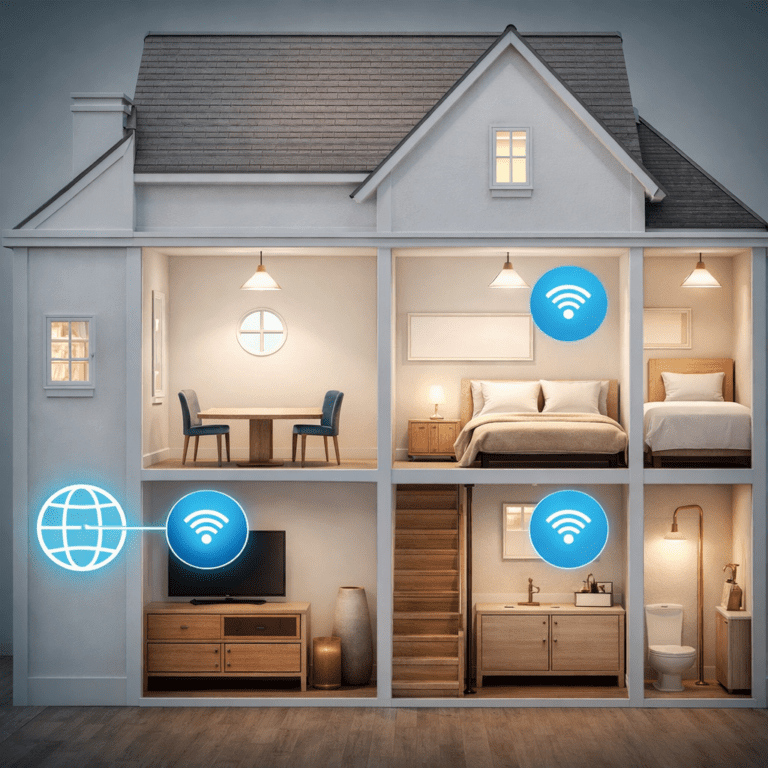
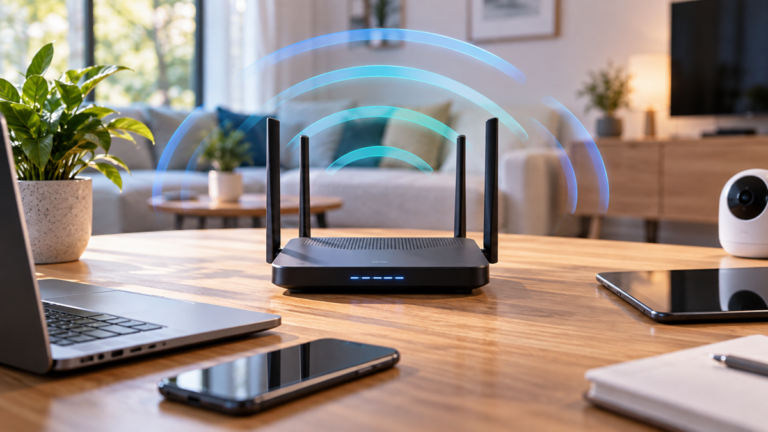
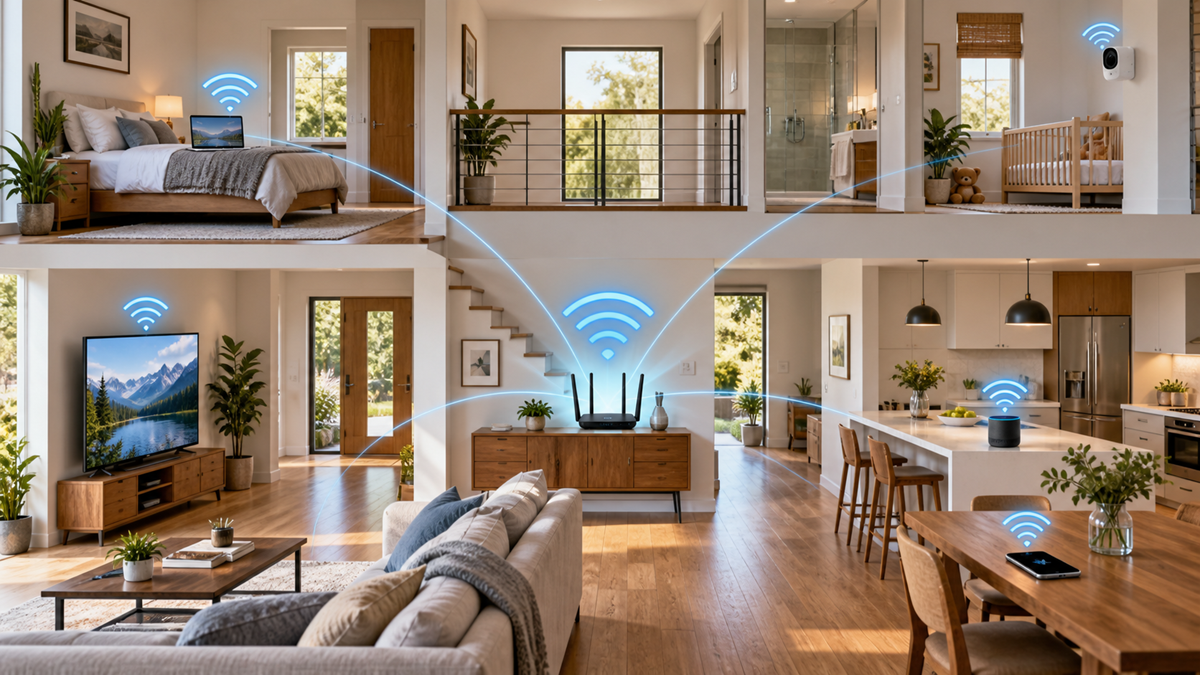
Wi-Fi uses radio signals to connect phones, computers, televisions, smart appliances, and other compatible devices to a local wireless network.
A wireless access point provides this connection and is often built into the home router. Wi-Fi and internet access are related, but they are not the same thing.
Wi-Fi connects devices to the local network.
Your internet provider supplies the external connection used to reach websites, applications, and online services.
How Does Wi-Fi Work?
Wi-Fi is a type of wireless local area networking.
It allows compatible devices within a limited area to exchange data through radio communication.
Most home Wi-Fi networks use technologies from the IEEE 802.11 family of standards.
Consumer products usually display simpler generation names.
Examples include Wi-Fi 5, Wi-Fi 6, Wi-Fi 6E, and Wi-Fi 7.
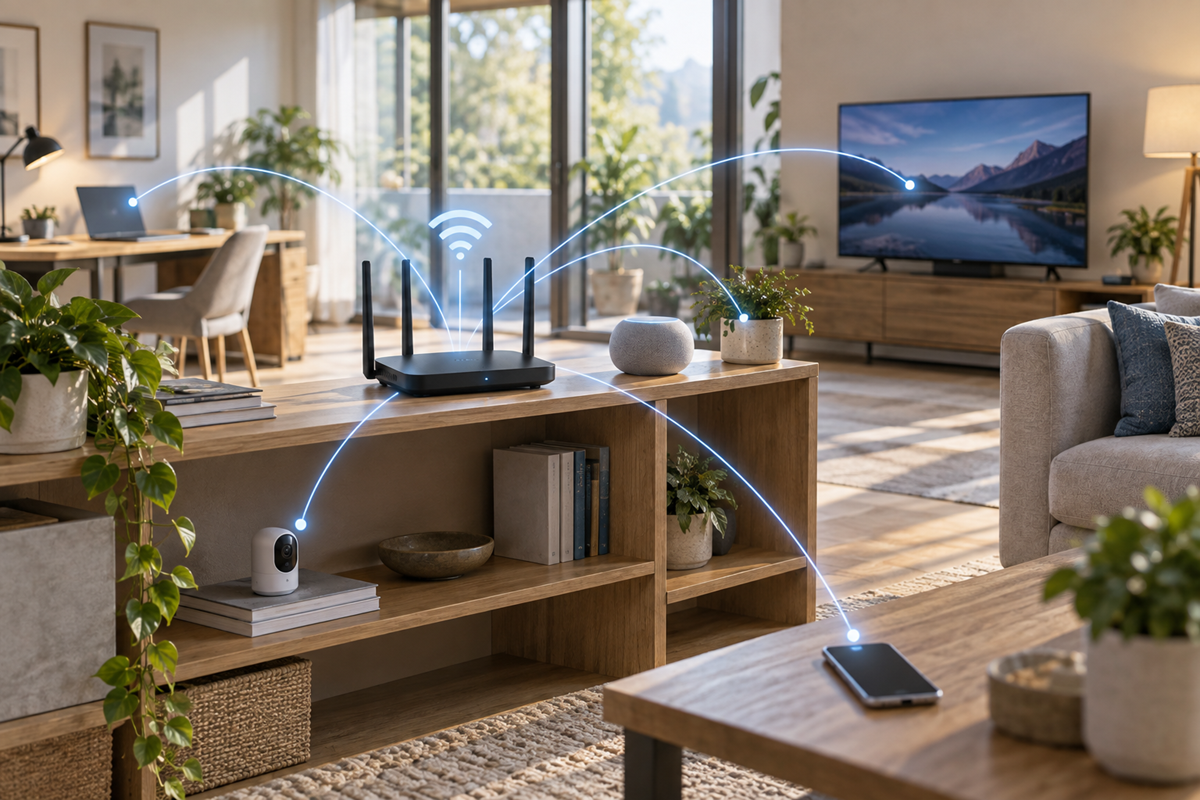
A typical connection begins when a wireless access point makes the network available to nearby devices.
A phone or computer discovers the network name and requests permission to join.
The user then provides the required password or another form of authentication.
After the connection is established, data travels between the device and access point as radio transmissions.
The router directs that data toward another local device or the internet.
A simplified connection path looks like this:
- A phone, computer, or other device connects to the wireless access point.
- The router assigns or confirms a local network address.
- The connected device sends a request through the router.
- The router forwards internet traffic through the modem or provider gateway.
- The requested data returns through the same network.
Wi-Fi is a shared communication medium.
Nearby devices using the same channel must share available radio time.
Distance, interference, walls, and network activity can therefore affect performance.
Wi-Fi vs Internet Access
Wi-Fi is the wireless connection between a device and the local network.
Internet service connects that network to websites and online services outside the home.
A device can have a strong Wi-Fi signal while internet access is unavailable.
In that situation, the connection to the router may be working correctly.
The problem may involve the modem, provider service, DNS, cabling, or router configuration.
The opposite can also happen.
Internet service may work correctly through an Ethernet cable while a distant wireless device receives a weak or unstable Wi-Fi signal.
This distinction is useful when diagnosing a connection problem.
Always determine whether the issue affects the local wireless network, the internet service, or both.
Main Parts of a Home Wi-Fi Network
Modem or Optical Network Terminal
A modem or optical network terminal connects the home to the internet provider.
The required equipment depends on whether the service uses cable, fiber, DSL, or another connection type.
Some providers supply one gateway that combines several functions.
It may contain the modem, router, Ethernet switch, firewall, and Wi-Fi access point.
Router
The router directs data between the local home network and other networks.
It normally manages local addresses, internet traffic, firewall functions, and network settings.
The term “router” is often used for the entire home networking device.
However, routing and wireless access are separate technical functions.
Wireless Access Point
The wireless access point creates the Wi-Fi connection used by nearby devices.
Most consumer routers have an access point built into them.
Larger homes may use additional access points.
They can improve coverage when they are connected, configured, and positioned correctly.
Ethernet Switch
An Ethernet switch adds wired connections to the network.
It can connect televisions, computers, game systems, network storage, cameras, and separate access points.
Using Ethernet for fixed devices can reduce wireless traffic.
It can also provide more predictable performance for equipment that does not need mobility.
Client Devices
A client is any device that connects to the network.
Its Wi-Fi generation, antennas, software, location, and supported frequency bands affect the connection.
A new router cannot give an older client features that the client does not support.
The connection uses capabilities available on both sides.
How Devices Connect to Wi-Fi
The access point broadcasts information that allows nearby devices to discover the network.
The visible network name is called the SSID.
When a user selects the SSID, the device and access point begin an authentication process.
A secured home network normally requires a password.
After authentication, the router provides the information needed for local communication.
This usually includes a local IP address, gateway address, and DNS settings.
The connection remains active while the device stays within usable range.
A mobile device may switch to another access point when moving through a larger home.
This process is known as roaming.
2.4 GHz, 5 GHz and 6 GHz Wi-Fi Bands
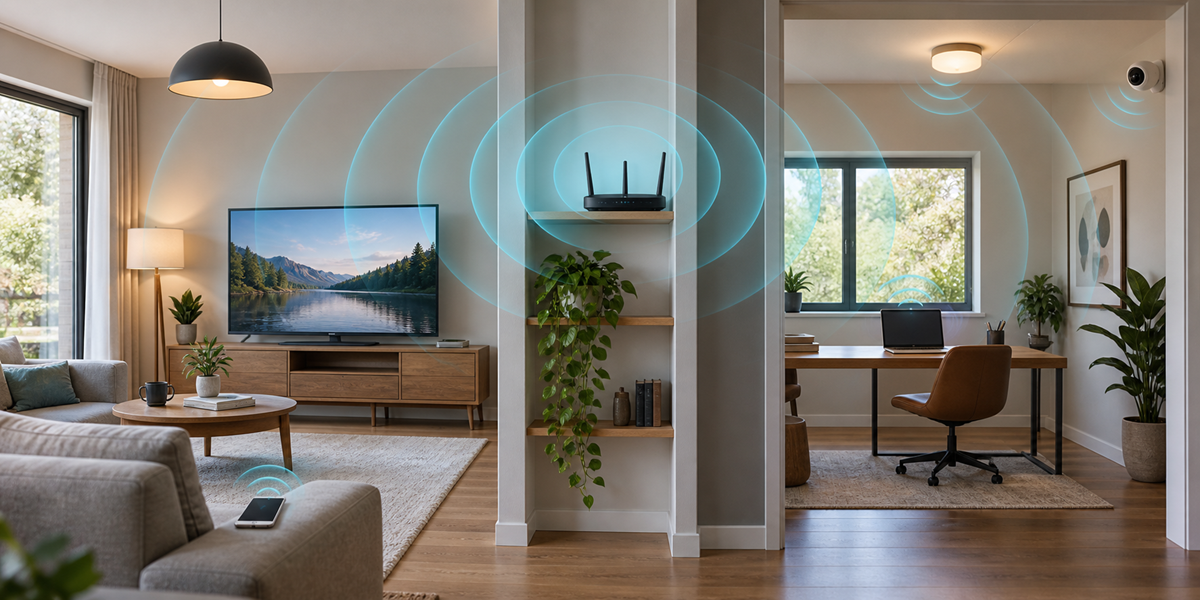
Modern home wireless networking can operate in several frequency bands.
Each band has different strengths and limitations.
Channel availability and permitted power levels vary by country.
2.4 GHz Wi-Fi
The 2.4 GHz band generally provides useful range and wall penetration.
It is widely supported by older equipment and many smart home products.
Its disadvantages may include:
- Limited channel capacity
- Congestion from neighboring networks
- Interference from other wireless equipment
- Lower practical throughput than a strong higher-frequency connection
The 2.4 GHz band can be suitable for low-bandwidth devices located farther from the router.
A strong 2.4 GHz connection may work better than a weak 5 GHz connection.
5 GHz Wi-Fi
The 5 GHz band provides more channel choices and can support higher throughput.
It is commonly used by phones, laptops, televisions, and game consoles.
Its effective range may be shorter than that of 2.4 GHz.
Walls, floors, furniture, and other obstacles can reduce the signal.
Some 5 GHz channels may be subject to regional restrictions or radar-detection requirements.
Automatic channel selection is usually a practical starting point.
6 GHz Wi-Fi
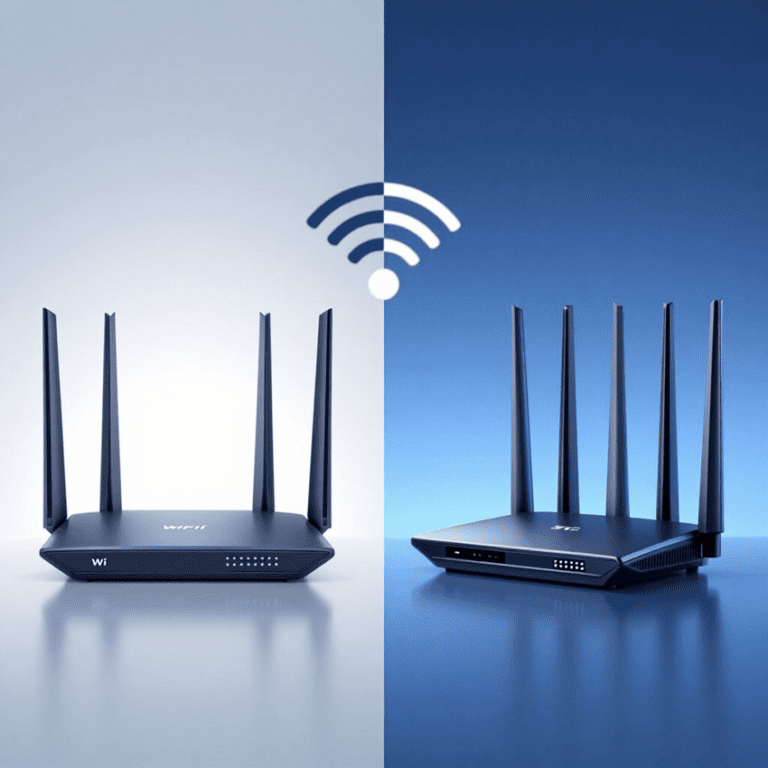
Compatible Wi-Fi 6E and Wi-Fi 7 equipment can use the 6 GHz band.
This band provides additional spectrum and avoids competition with older Wi-Fi devices that cannot use it.
Both the access point and client must support 6 GHz.
Availability also depends on local regulations.
A 6 GHz signal may lose strength more quickly through walls and over distance.
The band is most useful when compatible devices have a strong connection to a nearby access point.
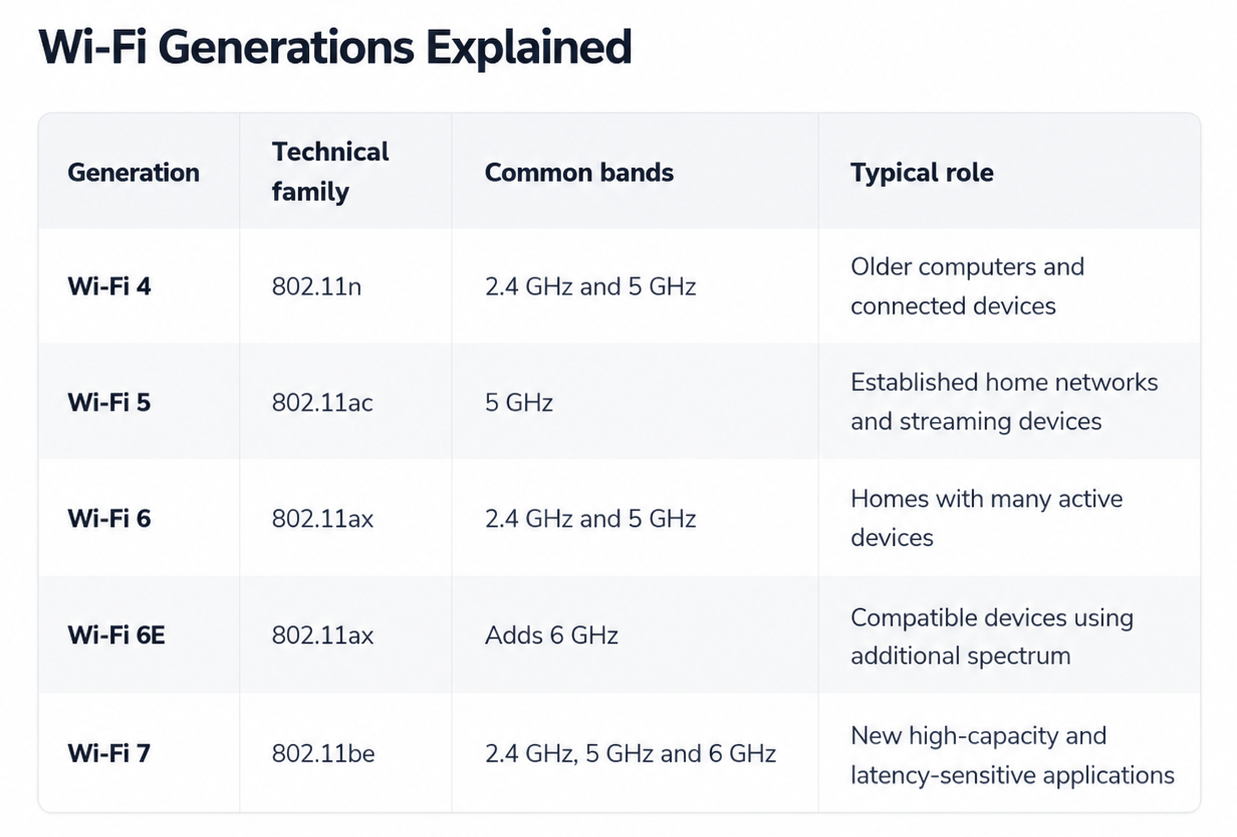
A newer generation can improve efficiency, capacity, and potential throughput.
It does not guarantee the maximum speed printed on the router box.
Real performance depends on:
- The capabilities of the router and client
- The connected frequency band
- Channel width
- Signal strength
- Interference and congestion
- The number of active devices
- Router processing performance
- Internet service speed
Wi-Fi 7 can add features such as Multi-Link Operation.
Compatible devices may use multiple links to improve throughput, latency, or reliability.
Actual support and implementation vary between products.
SSID, Passwords and Wi-Fi Roaming
What Is an SSID?
The SSID is the network name shown when a device searches for available Wi-Fi connections.
It helps users identify the correct network.
Avoid including a surname, street address, apartment number, router model, or other personal information in the SSID.
A neutral name is sufficient.
Should All Bands Use the Same SSID?
Many routers use one SSID for the 2.4 GHz, 5 GHz, and supported 6 GHz bands.
The router and client then select an appropriate connection.
A single name is usually convenient.
Separate names may be useful during troubleshooting or when an older device has compatibility problems.
What Is Roaming?
Roaming allows a mobile device to move between access points on the same network.
The client normally decides when to leave one access point and join another.
Using the same SSID and compatible security settings can support smoother roaming.
However, different phones and computers may switch at different signal levels.
Wi-Fi Channels and Channel Width
Each frequency band is divided into channels.
Nearby networks using the same or overlapping channels share available radio time.
A wider channel can provide higher peak throughput.
It also occupies more spectrum and may experience more interference.
The widest setting is not always the best option in a crowded area.
Automatic channel selection is suitable for many homes.
Manual adjustment can help when repeated tests reveal a persistent congestion problem.
For practical channel selection, see our guide to choosing the best Wi-Fi channel for 2.4 GHz, 5 GHz and 6 GHz, including channel width, interference and congestion.
Do not make permanent changes after only one brief network scan.
Wireless conditions change as neighboring networks and devices become active.
Test performance at different times.
Where Should You Place a Wi-Fi Router?
Router placement has a major effect on wireless coverage.
A central, elevated, and open position is usually better than a floor-level corner or closed cabinet.
When possible, keep the router away from:
- Large metal objects
- Electrical panels
- Dense masonry
- Reinforced concrete
- Mirrors with metallic backing
- Aquariums and large water containers
- Microwave ovens
- Closed media cabinets
- Other sources of radio interference
Do not cover the router or block its ventilation openings.
Follow the manufacturer’s instructions for orientation, temperature, power, and clearance.
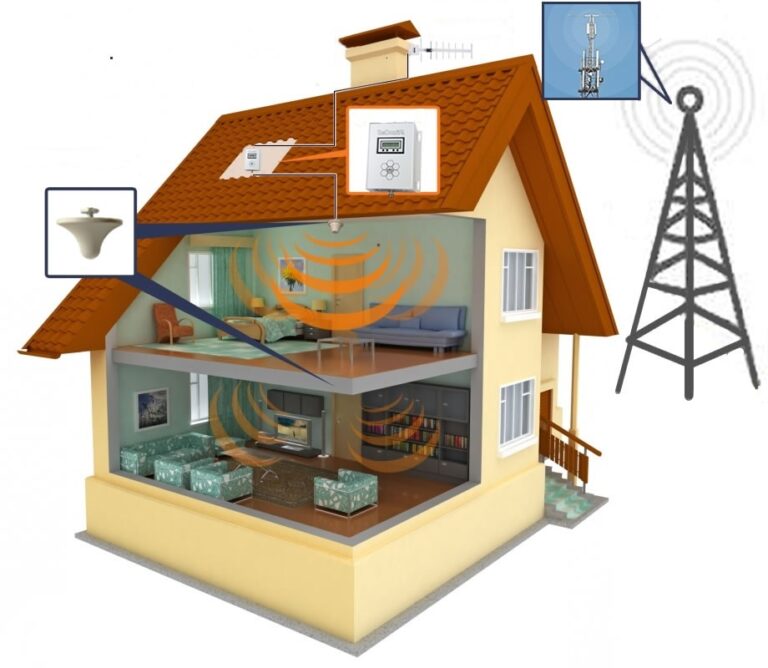
One router may not cover a large or unusually shaped building.
A wired access point or properly planned mesh system may be more effective than placing a repeater in a location that already has a poor signal.
For difficult layouts, see our guide to
improving Wi-Fi coverage in large homes.
How to Set Up a Home Wi-Fi Network
- Connect the modem or provider gateway as instructed.
- Connect the router if it is a separate device.
- Place the router in an open and practical location.
- Open the manufacturer’s official application or management page.
- Change the default administrator credentials when required.
- Install available firmware updates.
- Create a neutral Wi-Fi network name.
- Select WPA3 or a suitable WPA2/WPA3 compatibility mode.
- Create a long and unique Wi-Fi password.
- Review guest-network and smart-device options.
- Connect devices gradually.
- Test performance in important rooms.
Use only the setup application or management address provided by the router manufacturer.
Avoid unknown third-party applications that request administrator credentials.
For a broader setup that includes Ethernet, switches, equipment placement, and wired connections, read
how to build a fast and stable home network.
How to Secure Your Wi-Fi Network
The router controls access to many connected devices.
Its security settings should be reviewed during installation and after important updates.
Use Modern Wireless Security
Use WPA3 when the router and connected devices support it.
A WPA2/WPA3 compatibility mode may be necessary for older equipment.
Avoid obsolete WEP and original WPA security.
If an old device requires these settings, consider replacing or isolating it instead of weakening the main network.
Change Default Credentials
The router administrator password and Wi-Fi password protect different functions.
Both should be long, unique, and different from passwords used for other accounts.
Do not leave known default administrator credentials active.
Store replacement credentials in a reputable password manager or another secure location.
Install Router Updates
Firmware updates can correct security and reliability problems.
Enable authenticated automatic updates when the router supports them.
Otherwise, check the manufacturer’s official support page.
Consider replacing a router that no longer receives security updates.
Older hardware may continue working while remaining exposed to unresolved vulnerabilities.
Review Unused Features
Remote administration, WPS, port forwarding, file sharing, and Universal Plug and Play can affect network security.
Disable features that are not needed.
Do not change advanced settings without understanding which devices or applications depend on them.
Keep a record of deliberate configuration changes.
Create a Guest Network
A guest network can separate visitors from personal computers, storage devices, and other equipment.
Use a different password from the main network.
Review whether guest devices can communicate with one another or access local network resources.
Available controls vary by router.
Wi-Fi for Smart Home Devices
Many smart home products use 2.4 GHz Wi-Fi.
The band provides broad compatibility and useful range for devices that do not require high throughput.
Before buying a connected product, check:
- Supported Wi-Fi bands
- Security options
- Update policy
- Expected support period
- Cloud-service requirements
- Local functions available without internet access
- Account authentication options
- Compatibility with the intended smart home platform
Use unique account passwords and enable multifactor authentication when available.
Keep device software current.
Remove equipment that no longer receives essential security support.
Some routers offer a dedicated network for smart home devices.
This can limit direct access between IoT products and computers containing sensitive information.
NIST recommends considering a separate network for connected home equipment.
See its
smart home security guidance.
Not every smart home device connects directly through Wi-Fi.
Some products use Bluetooth, Zigbee, Z-Wave, Thread, Ethernet, or a manufacturer-specific hub.
What Affects Wi-Fi Performance?
Distance
Signal strength normally decreases as the distance from the access point increases.
A device may remain connected while its speed and reliability decline.
Walls and Floors
Building materials affect radio signals differently.
Dense masonry, reinforced concrete, metal, and some insulation can produce substantial signal loss.
Interference
Neighboring networks and other radio devices compete for available spectrum.
Interference can reduce throughput even when the signal indicator looks strong.
Connected Devices
Active devices share network capacity.
Cloud backups, security cameras, large downloads, and high-resolution streaming can create significant traffic.
Client Hardware
A router and client negotiate a connection using mutually supported features.
An older phone may connect successfully but cannot use capabilities available only in newer equipment.
Internet Service
Wi-Fi cannot make the provider connection faster than the purchased service.
The local wireless link may be capable of higher speeds than the internet plan.
Router Workload
Parental controls, security scanning, VPN services, traffic monitoring, and advanced filtering may affect performance.
The result depends on the router’s hardware and configuration.
Troubleshooting Wi-Fi Problems
Determine Whether Wi-Fi or the Internet Is Failing
Test another device.
When practical, compare Wi-Fi performance with a direct Ethernet connection.
If all devices lose internet access, the problem may involve the provider connection, modem, gateway, or router.
If only distant wireless devices are affected, coverage may be the main issue.
Check the Equipment Status
Inspect power, cables, and status indicators.
Use the provider or manufacturer instructions to interpret warning lights.
Restart the Network Correctly
Follow the manufacturer’s recommended sequence when restarting a modem, router, or gateway.
Allow each device enough time to reconnect.
Frequent restarts should not be treated as a permanent repair.
Check firmware, cables, heat, service status, and system logs when the problem returns.
Test Near the Router
If performance improves near the router, distance or obstacles may be responsible.
A better router position or additional access point may help.
Check the Frequency Band
A distant device may work better on 2.4 GHz.
A nearby modern device may benefit from 5 GHz or 6 GHz.
Test the connection instead of assuming the highest-frequency band is always best.
Check for Congestion
Compare performance at different times.
Move the router away from obstructions and likely interference sources.
Update the Router and Clients
Install supported router firmware, operating-system updates, and network-driver updates.
Obtain updates only from official sources.
Do Not Add an Extender Automatically
An extender can help in some homes.
Poor placement may create another connection that is still slow or unstable.
A wired access point or mesh system may be more appropriate.
Compare the options in our
Wi-Fi extender versus mesh Wi-Fi guide.
When Should You Upgrade a Wi-Fi Network?
Do not replace a working router only because a newer Wi-Fi generation is available.
Upgrade when the existing equipment no longer meets a real need.
An upgrade may be appropriate when:
- The router no longer receives security updates.
- Coverage remains poor after improving placement.
- The router struggles with the number of active devices.
- The internet service exceeds the router’s practical capacity.
- Required Ethernet port speeds are unavailable.
- The router lacks appropriate WPA2 or WPA3 security.
- Important clients support useful features the router cannot provide.
- Reliability problems continue after proper troubleshooting.
A newer router cannot eliminate every dead zone.
Large buildings may need multiple access points and a suitable wired or wireless backhaul.
Compare security support, firmware policy, Ethernet ports, access-point capacity, management features, and client compatibility.
Do not choose equipment only by the largest speed number printed on the packaging.
Frequently Asked Questions
How does Wi-Fi work without cables?
Wi-Fi uses radio communication between a device and wireless access point.
The access point connects wireless clients to the local network and usually to the router.
Is Wi-Fi the same as the internet?
No.
Wi-Fi provides a local wireless connection.
Internet service connects the local network to external websites and online services.
Do I need both a modem and router?
Most internet connections require provider termination equipment and routing.
These functions may be supplied by separate devices or combined in one gateway.
Which Wi-Fi band is best?
No band is best in every location.
The 2.4 GHz band often provides useful range.
The 5 GHz band offers more capacity.
The 6 GHz band provides additional spectrum for compatible nearby devices.
Should 2.4 GHz and 5 GHz have the same network name?
One network name is convenient when the router manages band selection effectively.
Separate names may help with testing or older-device compatibility.
Does a new router increase internet speed?
It may improve the local connection when the old router is the limiting factor.
It cannot increase the speed supplied by the internet provider.
Is Wi-Fi 7 necessary for a home network?
Not for every home.
Wi-Fi 6 and Wi-Fi 6E can remain suitable for many users.
Wi-Fi 7 is most useful when compatible devices and demanding applications can benefit from its features.
Is Ethernet better than Wi-Fi?
Ethernet often provides more predictable latency and throughput.
Wi-Fi provides mobility and easier connection for portable devices.
Many homes benefit from using both.
How can I secure home Wi-Fi?
Use WPA3 or appropriate WPA2/WPA3 security.
Create unique passwords, install firmware updates, and disable unused administration features.
Consider separate guest and IoT networks.
Why is Wi-Fi slow even when the signal is strong?
A strong signal does not guarantee available capacity.
Congestion, interference, router workload, client limitations, or the internet connection may reduce performance.
Can Wi-Fi work when the internet is down?
The local Wi-Fi network may continue operating.
Local printers, storage, and some smart devices may remain accessible.
Cloud-dependent applications will usually lose their online functions.
How far does a Wi-Fi signal reach?
There is no universal distance.
The frequency band, access-point power, antennas, client device, building materials, interference, and regional rules all affect range.
Final Thoughts on How Wi-Fi Works
Understanding how Wi-Fi works makes it easier to choose equipment, improve coverage, protect connected devices, and diagnose connection problems.
The router, access points, frequency bands, channels, clients, and internet service all influence performance.
Begin with suitable router placement, modern security, current firmware, and wired connections for fixed high-demand equipment when practical.
Add mesh nodes, access points, or extenders only after identifying the actual coverage problem.
A well-planned home wireless network should provide reliable access without unnecessary complexity.
Understanding the basic components also makes future upgrades and troubleshooting much easier.