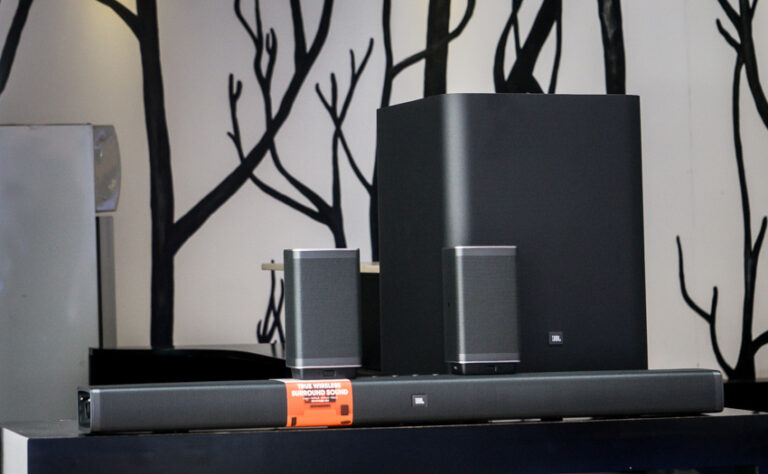
How do I get the TV sound to play through my home cinema system?
How to Connect Your TV to a Home Cinema System: The Complete Guide (HDMI ARC, eARC, Optical, Coaxial)
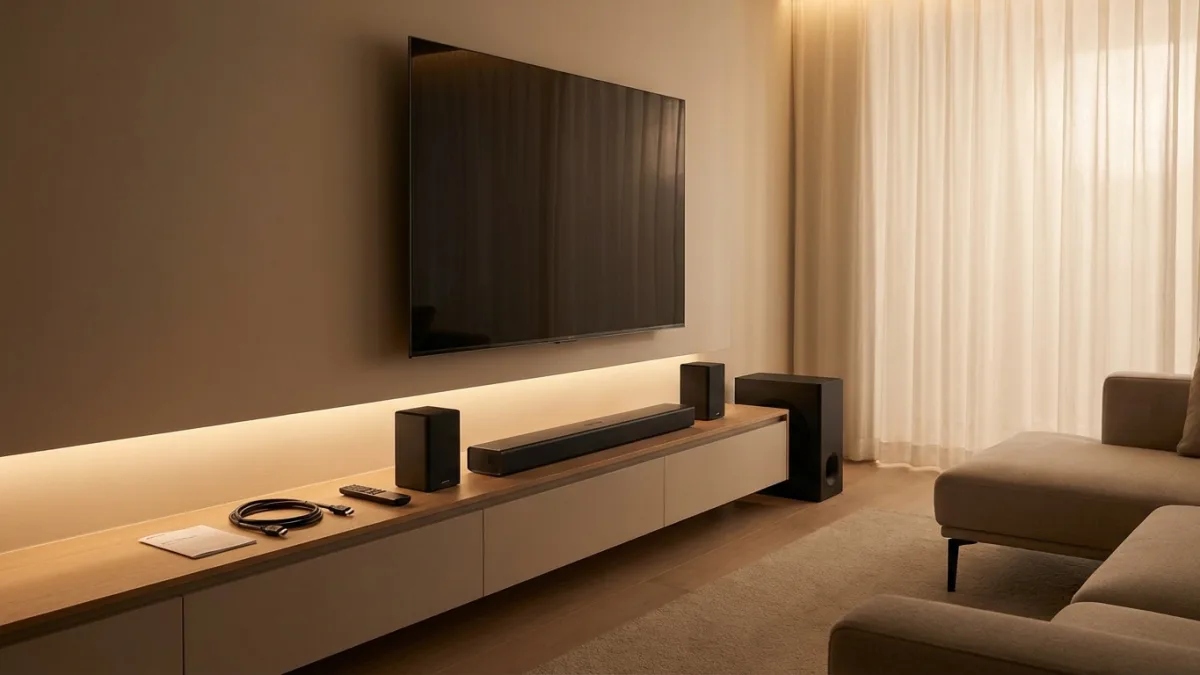
Home cinema systems can dramatically improve your TV experience — but only if the audio is connected and configured correctly. Whether you’re using HDMI ARC, HDMI eARC, optical (TOSLINK), or digital coaxial, this guide walks you through every method step‑by‑step and shows you how to optimize your audio settings for the best possible sound.
This article covers everything you need to know, from choosing the right cable to fixing common audio problems.
⭐ Best Ways to Connect Your TV to a Home Cinema System
There are four main ways to send audio from your TV to your home theater receiver:
- HDMI ARC – ideal for Dolby Digital and DTS 5.1
- HDMI eARC – required for Dolby Atmos, DTS:X, and lossless audio
- Optical (TOSLINK) – reliable for 5.1 surround
- Digital Coaxial – robust alternative to optical, great for long distances
Your choice depends on your TV, your amplifier, and the audio formats you want to enjoy.
1. Connecting Your TV via HDMI ARC or eARC
🔌 How to connect
- Plug an HDMI cable into the HDMI ARC/eARC port on your TV.
- Connect the other end to the HDMI OUT (ARC) port on your home cinema amplifier.
- Use:
- High Speed HDMI for ARC
- Ultra High Speed HDMI (HDMI 2.1) for eARC
⚙️ Enable ARC/eARC on your TV
Go to your TV’s audio settings and activate:
- HDMI‑CEC
- Or brand‑specific names:
- Samsung: Anynet+
- Sony: Bravia Sync
- LG: SimpLink
- Philips: EasyLink
Then select External Audio System, Receiver, or Amplifier as the audio output.
⚙️ Configure your amplifier
- Select the input labeled TV, ARC, or HDMI 1.
- Enable HDMI Control / CEC in the amplifier’s settings.
- Restart both devices if needed.
🛠 Common ARC issues
- No sound? Restart both devices and reconnect the HDMI cable.
- Random dropouts? Replace the HDMI cable with a certified High Speed model.
- Wrong port? Make sure you’re using the one labeled ARC.
2. Connecting Your TV with an Optical (TOSLINK) Cable
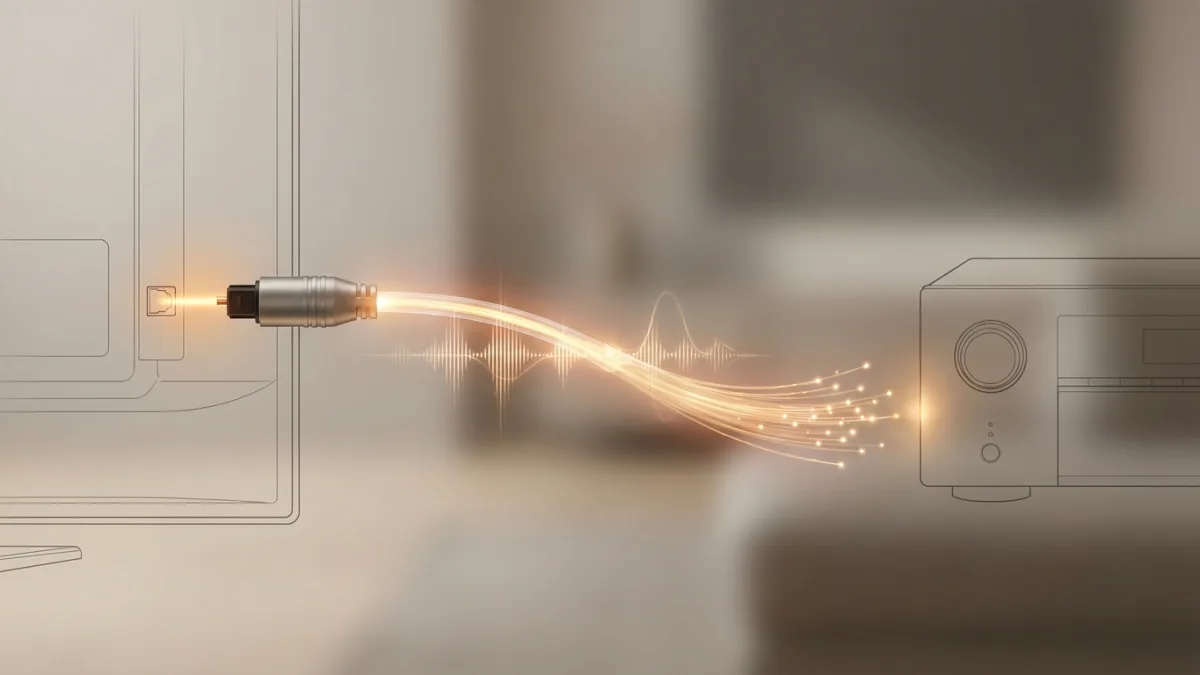
🔌 How to connect
- Plug the optical cable into Optical Out / Digital Audio Out on your TV.
- Connect the other end to Optical In on your amplifier.
- Remove protective caps carefully — dust can weaken the light signal.
⚙️ Configure optical output
- Select Optical Output or Digital Audio Out in your TV settings.
- Disable TV speakers.
- Choose:
- Bitstream for Dolby Digital / DTS 5.1
- PCM for maximum compatibility (stereo or 5.1 depending on content)
🛠 Limitations of optical
- No Dolby Atmos
- No DTS:X
- No Dolby TrueHD or DTS‑HD MA
- No TV volume control
Optical is perfect for standard 5.1 but not for advanced audio formats.
3. Connecting Your TV with a Digital Coaxial Cable
🔌 How to connect
- Use a 75‑ohm digital coaxial cable (not a standard RCA cable).
- Connect Coaxial Out on your TV to Coaxial In on your amplifier.
⚙️ Configure coaxial output
- Select Coaxial Output or Digital Audio Out (Coaxial).
- Disable TV speakers.
- Choose Bitstream for Dolby Digital/DTS or PCM for stereo.
⭐ Advantages over optical
- Works reliably over 10 meters or more
- More robust connectors
- Better resistance to electrical interference
🛠 Troubleshooting coaxial issues
- No sound? Check that you’re using a true 75‑ohm digital cable.
- Persistent hum? You may have a ground loop — use a ground loop isolator.
4. Optimize Your Audio Settings for the Best Sound
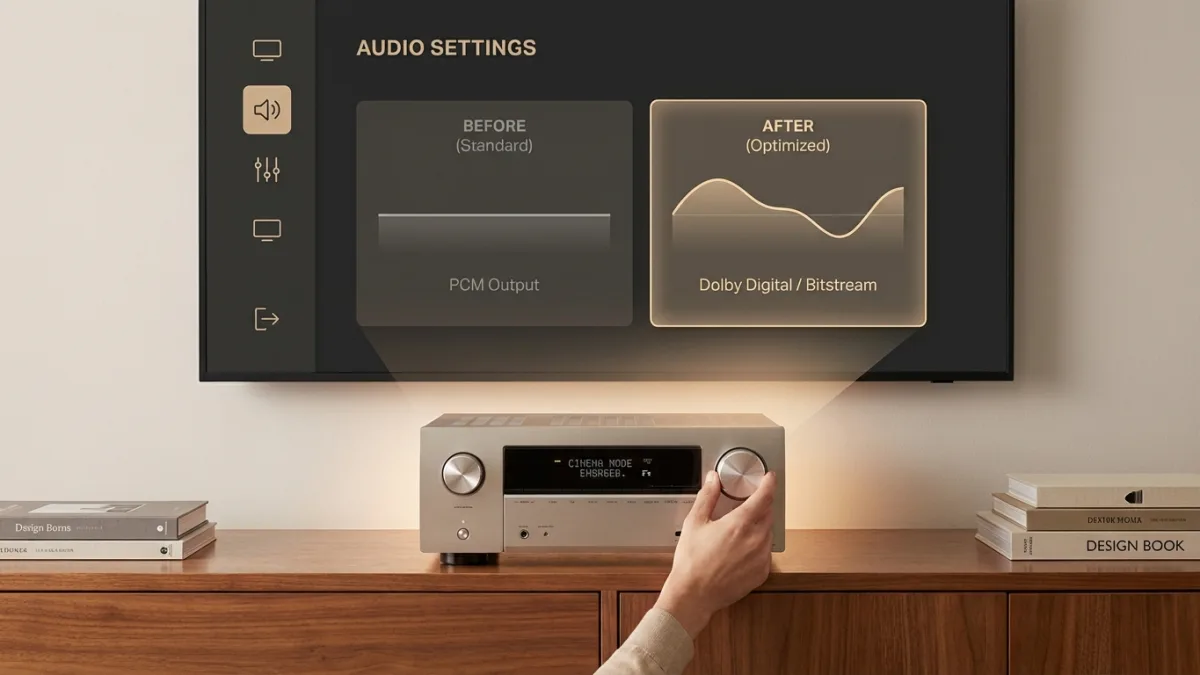
Once connected, fine‑tuning your settings makes a huge difference.
🎛 Disable unnecessary TV audio processing
Turn off:
- Virtual Surround
- Bass Boost
- Clear Voice
- Night Mode
These features conflict with your amplifier’s processing and degrade sound quality.
Set Audio Delay on the TV to 0 ms — your amplifier handles lip sync more accurately.
🎚 Choose the right amplifier mode
- For movies: Auto, Dolby Digital, DTS
- For music: Stereo or Direct
- Avoid All Channel Stereo for films — it destroys the original mix.
🔊 Calibrate your speakers
Use your amplifier’s calibration system:
- Audyssey (Denon/Marantz)
- YPAO (Yamaha)
- AccuEQ (Onkyo)
- MCACC (Pioneer)
- ARC (Anthem)
If calibrating manually:
- Sit in your main listening position
- Use the Test Tone function
- Adjust each speaker to 75 dB using a sound meter or smartphone app
🎥 Fix lip‑sync issues
If audio and video are out of sync:
- Increase Audio Delay on the amplifier in 10–20 ms steps
- Modern TVs may offer eARC Audio Delay — enable it if available
Troubleshooting Common Problems
❌ No sound
- Wrong input selected
- TV speakers enabled
- ARC/eARC not activated
- HDMI cable in the wrong port
🔇 Intermittent sound
- Faulty HDMI cable
- Damaged or dirty optical cable
- Loose connectors
🔈 Only front speakers working
- TV set to PCM instead of Bitstream
- Content not encoded in 5.1
- Amplifier in Stereo/Direct mode
🔉 Low volume
- Set TV digital output to Fixed and max it out
- Disable ECO or Night Mode on the amplifier
🔊 Buzzing or humming
- Ground loop issue
- Plug all devices into the same power strip
- Use a ground loop isolator if needed
Frequently Asked Questions
How do I connect my TV to my home cinema system?
Use HDMI ARC/eARC, optical, or digital coaxial depending on your equipment.
Should I use passthrough?
Yes — Bitstream/Passthrough sends the original audio to your amplifier for proper decoding.
What’s the difference between ARC and eARC?
- ARC: compressed 5.1
- eARC: uncompressed Dolby Atmos, DTS:X, TrueHD, DTS‑HD MA
Which HDMI cable should I use?
- ARC: High Speed HDMI
- eARC: Ultra High Speed HDMI (HDMI 2.1)
Final Thoughts
Connecting your TV to a home cinema system isn’t complicated once you understand the different audio formats and connection types. Whether you choose HDMI ARC, eARC, optical, or coaxial, the key to great sound lies in proper configuration and calibration.